
Contact
Write to us.
Support for Camfold is by email only, at [email protected].
What to include
- Your version of Camfold. Settings › About shows it.
- Mac or Windows, and which version of it.
- What you did, and what happened. Copy the exact words of any message Camfold showed.
What to leave out
You can send a screenshot if it helps explain the issue. Please redact personal details, file names, locations and licence credentials first. Don’t attach original photos, videos or exported diagnostic logs. Copied error messages can include file and folder names from your computer, so read them before you send them.
Common fixes
Before you write.
How do I put moved photos back?
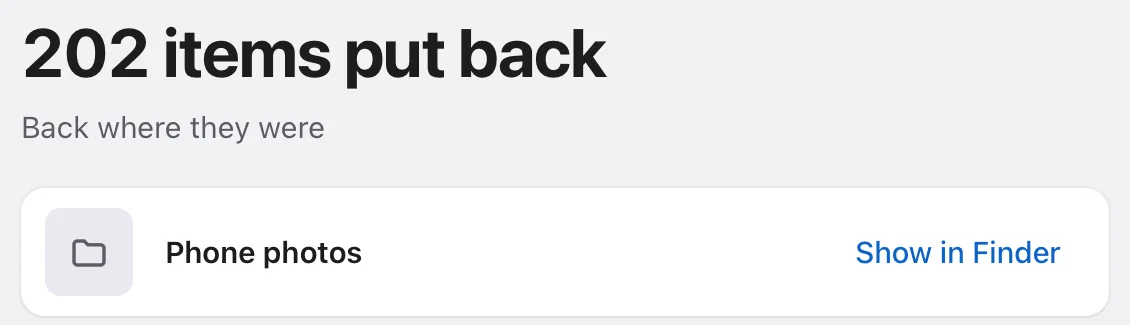
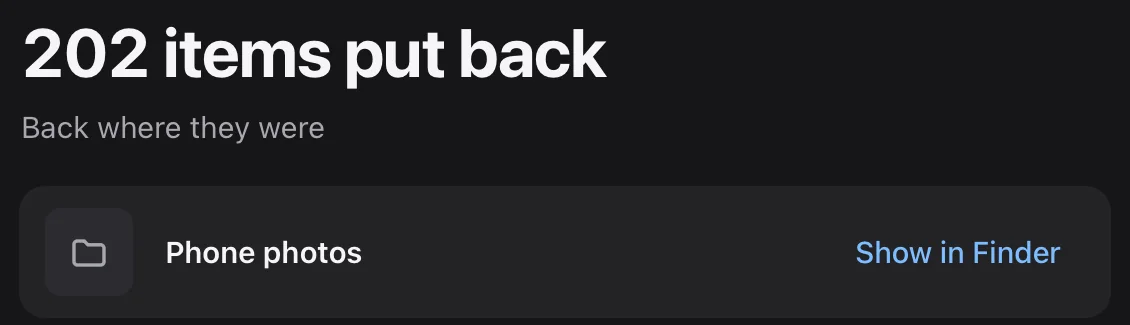
Choose Undo Move on the Done screen or on Welcome. It puts the newest Move back first, and you can undo older ones in turn, even after a restart. Undo checks every file first, so it stops if you’ve since edited or moved sorted files, or something now sits where a photo used to be.
Where did my photos and videos go?
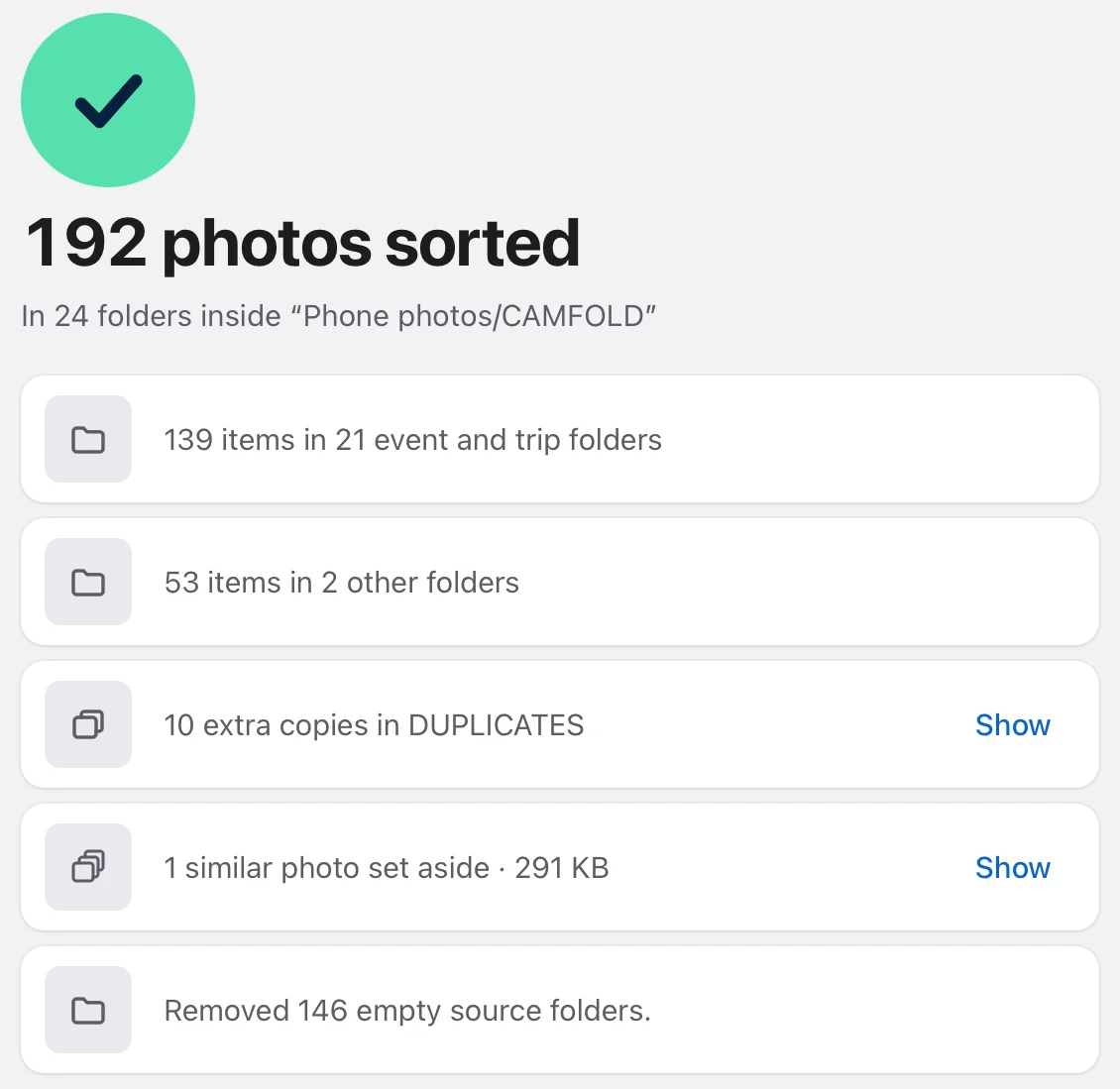
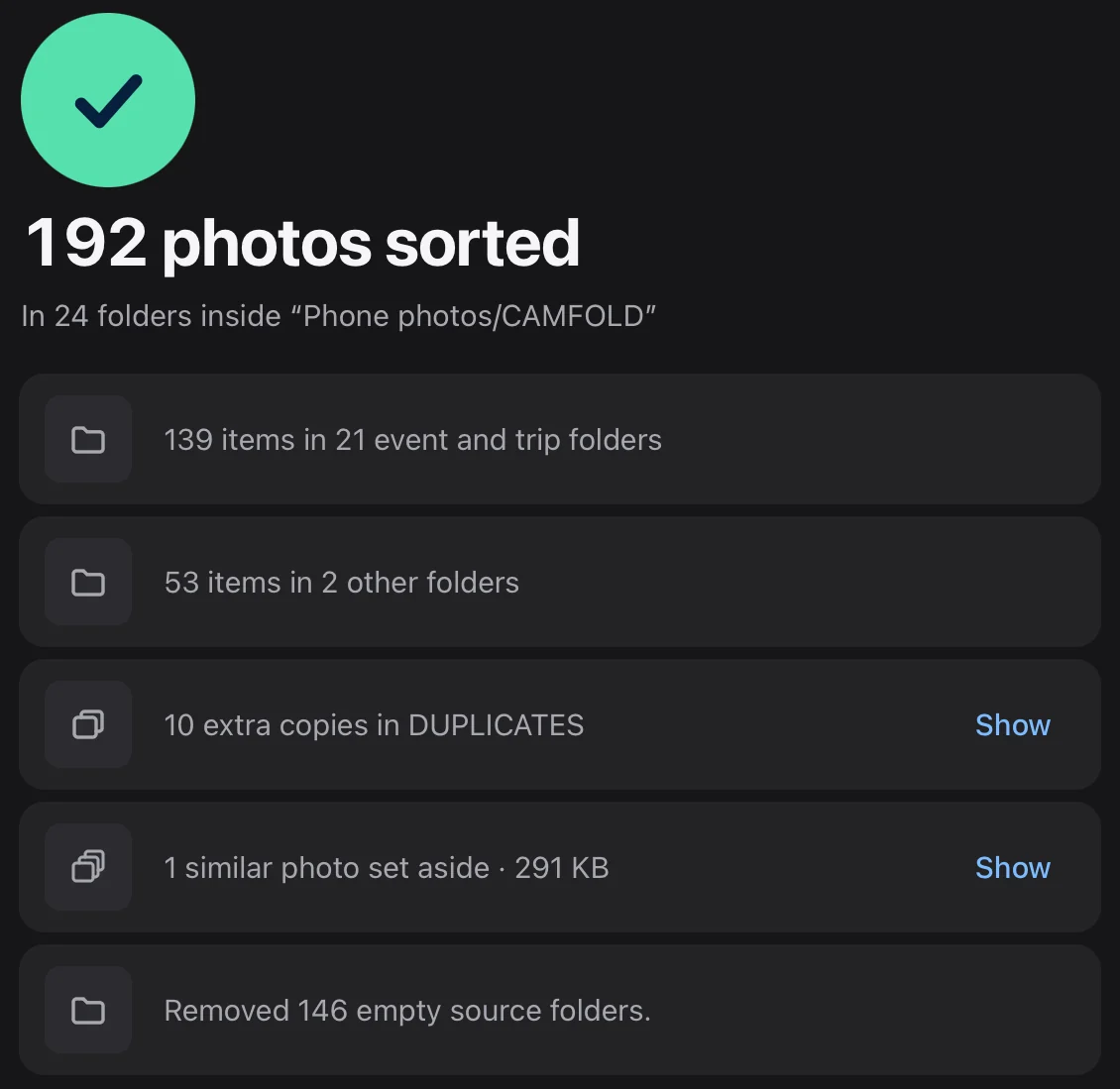
Into CAMFOLD/, inside the folder you chose: one folder for every event and trip. Photos you marked for deletion are in CAMFOLD/DELETED, and extra copies of duplicates in CAMFOLD/DUPLICATES. Camfold never erases a photo or video. Show in Finder or Show in Explorer on the Done screen opens CAMFOLD/.
How do I get the photos off my phone?
Connect your phone to your computer with a cable and copy its photos and videos into a folder. On a Mac, Image Capture does this; on Windows, the Photos app or File Explorer. Then choose that folder in Camfold.
Can Camfold sort my Apple Photos library?
Not directly. Camfold works on ordinary folders, so it can’t open an Apple Photos library. Export your photos and videos from Apple Photos into a folder first, then choose that folder.
Why are some photos in No date?
Camfold dates a photo from the date its camera recorded, or from a date in a supported file name. Photos without either go into No date. Renaming the folder they’re in doesn’t give them a date.
More in the questions on the home page
Licence
Your licence and purchase.
A Creem licence covers one person on two computers at a time, Mac or Windows, including every 1.x update. This includes the Windows edition from Microsoft Store.
Activate a Creem licence
Your licence key is in your receipt email. In Camfold, open Settings › Licence, choose Enter Licence Key, paste the key and choose Activate. Activating needs an internet connection and uses one of your two computers.
Move it to a new computer
On the old computer, open Settings › Licence and choose Deactivate on This Computer. That frees its place, and your reviews and Move history stay on it. Then activate the key on the new computer. Keep your receipt email: the same key activates Camfold again after a reinstall.
Mac App Store purchases
Use the Apple purchase or Restore Purchases option in Camfold’s licence settings. The Mac App Store edition follows Apple’s device and usage rules, rather than the direct licence’s two-computer limit. It does not include Windows or direct-download access, and a Creem key does not unlock it. Apple shows the purchase price.
Refunds
How refunds work is in the refund policy.